
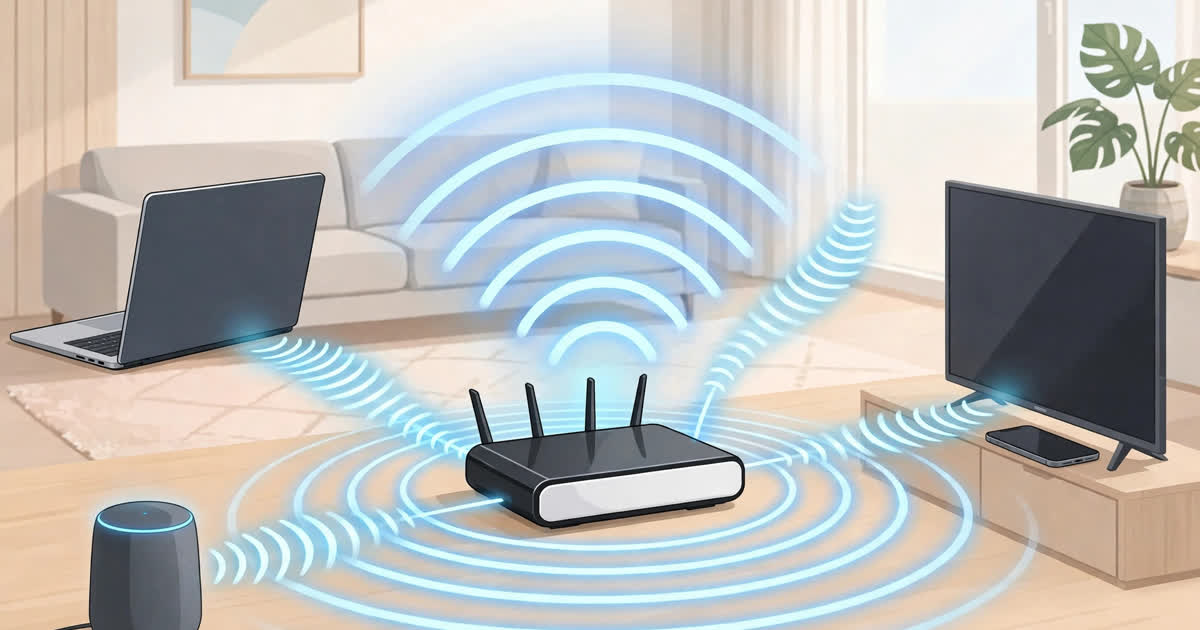
WiFi and networking sound like the same thing, but they are not — and knowing the difference is the fastest way to fix a slow connection. WiFi is the wireless link between your devices and your router. Networking is everything behind it: the router, the cables, the modem and the internet connection itself. In this guide, wifi and networking are explained in plain language: how wifi works, the difference between wifi and the internet, the standards from WiFi 4 to WiFi 7, and how to set up and fix a home network.
Your home network starts where the internet enters your house. A modem connects to your internet provider's line — fibre, cable or phone line — and a router shares that connection with your devices. Many homes now use a single box that does both jobs. The router then talks to your phone, laptop, television and smart speaker over wifi, or through Ethernet cables for devices that stay in one place. If any link in that chain is weak, your connection suffers, even if the rest of the chain is fine.
How does wifi work?
Wifi sends data as radio waves. Your router broadcasts a wireless network name, called an SSID, on one or more frequency bands: 2.4 GHz, 5 GHz and, on newer equipment, 6 GHz. Your device connects to that network, and data travels back and forth as radio signals, chopped into small packets. The three bands are a trade-off. The 2.4 GHz band travels furthest through walls and floors, but it is slower and crowded — it shares spectrum with Bluetooth devices, baby monitors and microwave ovens. The 5 GHz band is faster and less crowded but does not reach as far. The 6 GHz band, used by WiFi 6E and WiFi 7, is the widest and quietest of all, but its range is the shortest, so it works best in the same room as the router.
Modern wifi also got much smarter about sharing. WiFi 6 introduced OFDMA, which lets a router serve several devices in a single transmission instead of talking to them one at a time, and improved MU-MIMO, which uses multiple antennas to talk to several devices at once. That is why a modern router copes far better with a house full of phones, laptops, cameras and smart speakers than an old one did, even on the same broadband plan.
WiFi vs internet: what is the difference?
This distinction solves half of all home-network confusion. Wifi working does not mean the internet is working, and the internet working does not mean your wifi is good. If your phone shows full wifi signal but nothing loads, the problem is usually the internet connection or the router's link to it — not the wifi signal. If one room is slow while the room next to the router is fast, the problem is usually the wifi signal itself. A simple test settles it: plug a laptop into the router with an Ethernet cable. If the wired connection is fast, your wifi is the bottleneck. If it is slow too, the problem is your broadband or your provider.
There is a second trap in the numbers on the box. Your wifi can never be faster than your broadband plan, and the headline speeds on router boxes add up every radio band together. A router labelled BE9300 does not give any single device 9,300 Mbps; one laptop will only ever use one band at a time. Compare per-band speeds, channel widths and Ethernet ports when you shop, not the headline number.
Wifi Technology and Standards Explained: WiFi 4, 5, 6, 6E and 7
Wifi generations have two naming systems: the technical 802.11 code and the simple WiFi number. WiFi 4 is 802.11n, the first mainstream standard. WiFi 5 is 802.11ac, with a theoretical maximum around 3.5 Gbps. WiFi 6 is 802.11ax, raising that to around 9.6 Gbps and adding the multi-device technologies above. WiFi 6E is not a new generation: it is WiFi 6 equipment that can also use the 6 GHz band. WiFi 7 is 802.11be, formally standardised as IEEE 802.11be-2024 and published in July 2025, with a theoretical maximum around 46 Gbps.
WiFi 7's headline features are 320 MHz-wide channels (available mainly on 6 GHz), 4096-QAM modulation that packs more data into each signal, and Multi-Link Operation (MLO), which lets a device use more than one band at the same time for faster and more resilient connections. It also makes WPA3 security mandatory. But real-world speeds are far below theoretical maximums for every generation: they assume ideal signal, the widest channels and the most antennas. For most homes, WiFi 6 remains an excellent mainstream choice, WiFi 6E suits dense apartments and gaming, and WiFi 7 is for future-proofing and high-end use — provided your devices support it too, since both ends of the link need the same standard.
How to set up home wifi and networking that actually works
Placement matters more than any setting. Good wifi and networking starts with the router's position: put it as centrally as possible, out in the open and raised off the floor — not hidden in a cupboard, behind the television, or next to a microwave or a thick metal object. Walls, especially brick and concrete, weaken the signal, so a router at one end of a house will always struggle at the other end. For large or multi-storey homes, a mesh system — several units that talk to each other — beats a single router, and beats a cheap extender, which can cut speeds because it has to receive and retransmit on the same radio. If your mesh units can connect to each other by Ethernet cable, use it: a wired backhaul keeps the full wireless speed for your devices.
Then do the boring basics, because they work. Update the router's firmware, change the default admin password, use WPA3 (or WPA2 if a device is too old for WPA3), and give visitors a guest network so they are not on the same network as your computers and cameras. If your router offers band steering, leave it on: it quietly moves devices between 2.4 GHz and 5 GHz to the band that suits them best.
Why is my wifi slow? Fixing common wifi and networking problems
Work through this checklist before buying anything. Most wifi and networking problems have simple causes. First, restart the router and modem — unplug them for 30 seconds — because that clears more problems than any setting. Second, test with a wired connection to separate a wifi problem from a broadband problem. Third, check congestion: in a crowded apartment block, switching to the 5 GHz or 6 GHz band, or changing the wifi channel in the router's settings, can transform speeds. Fourth, count your devices: dozens of cameras, speakers and smart plugs can saturate an old router even when nobody is streaming. Fifth, check the age of the router itself: a WiFi 4-era box cannot deliver a modern fibre connection no matter what your plan promises. If the problem is one dead zone, add a mesh unit or an access point there rather than turning up the router's transmit power, which rarely helps.
Is wifi safe?
Home wifi with WPA3 and a strong, unique password is safe for everyday use. The real risks are open public networks and neglected equipment. On a cafe or airport network, avoid banking and sensitive logins unless you use a VPN, because open networks do not encrypt your traffic by default. At home, the two habits that matter most are keeping the router's firmware updated — manufacturers patch security flaws this way — and never leaving the default admin password in place. A guest network for visitors and smart-home gadgets adds one more useful layer, keeping the devices you trust least away from the computers you trust most.
Sources: IEEE 802.11be-2024 (Wi-Fi 7); Wi-Fi Alliance Wi-Fi Certified 7 programme; IEEE 802.11 standards guides. Related reading: how the internet works, cybersecurity basics, broadband deals guide, digital minimalism.